





Figma's First Draft on a Real Project — Honest Results

At Atomic Robot, our design team frequently faces tight deadlines to enhance UX/UI for clients. These clients often request significant changes at the last minute, emphasizing the importance of maximizing our limited time effectively.
We were tasked with improving a weather app’s UX and UI flows, particularly focusing on lightning alerts. While the client provided specific feature requests, we identified additional opportunities that we believed would further enhance their product.
Given the limited timeframe, we decided to test Figma’s new AI Beta feature, First Draft, to determine if it could streamline early design iterations and save time.
Putting First Draft to the Test
We started by pasting the client’s basic feature requests directly into First Draft:
- FlashWeather AI radar map with a lightning layer that can be toggled on/off
- Simplified weather forecast
- Onboarding screens for the importance of push notifications and location permissions
- Lightning detection tab with radius of nearest lightning, with visual aids to show level of safety
- Simplified forecast tab that shows lightning threat forecast from low to medium to high
- Settings page for selecting warning radius and times, plus a support section with contact email and website link
- Option to name a specific location site and edit/delete
- List of different saved sites with location, nearest strike, and threat forecast columns
Here’s what First Draft generated:
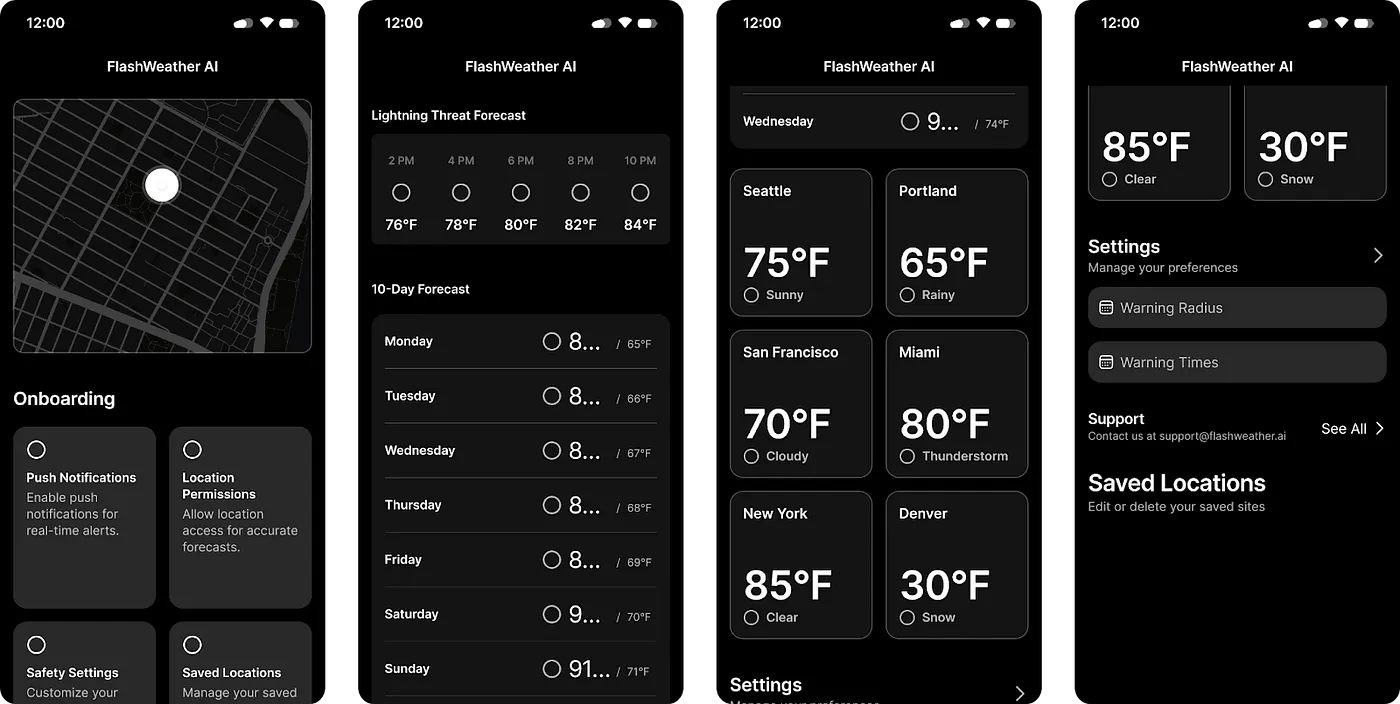
Initially, these iterations appeared promising, but they ultimately fell short of our expectations.
Iterating on Onboarding Screens
We also wanted to create some onboarding screens for permissions, so we tried a few text input variations:
- Onboarding screens for the importance of push notifications and location permissions
- Radar map
- Lightning map
- Simplified forecast
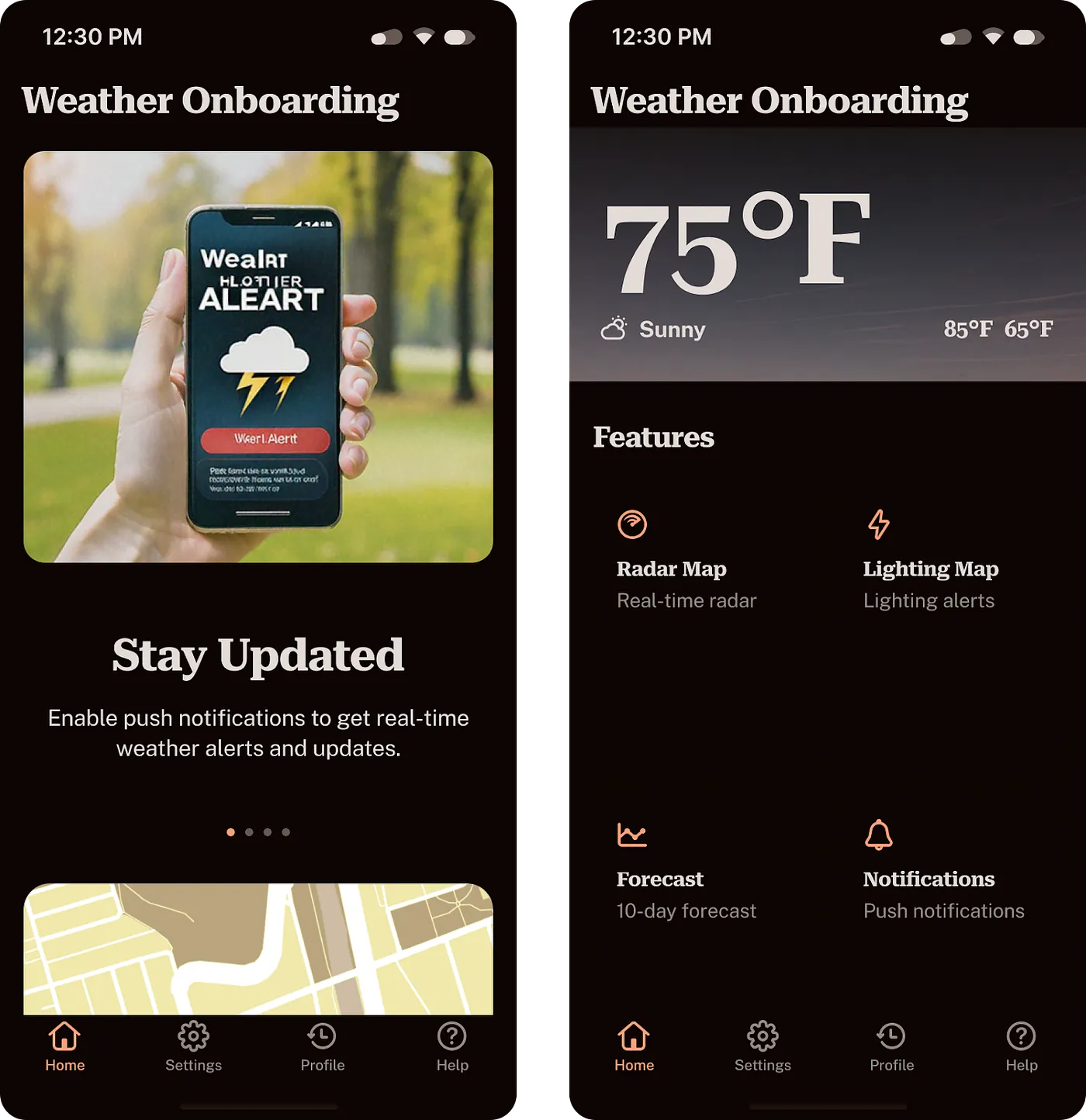
That still wasn’t quite what we were looking for, so we tried to simplify the prompt:
Onboarding screens for the importance of push notifications and location permissions on a lightning weather app
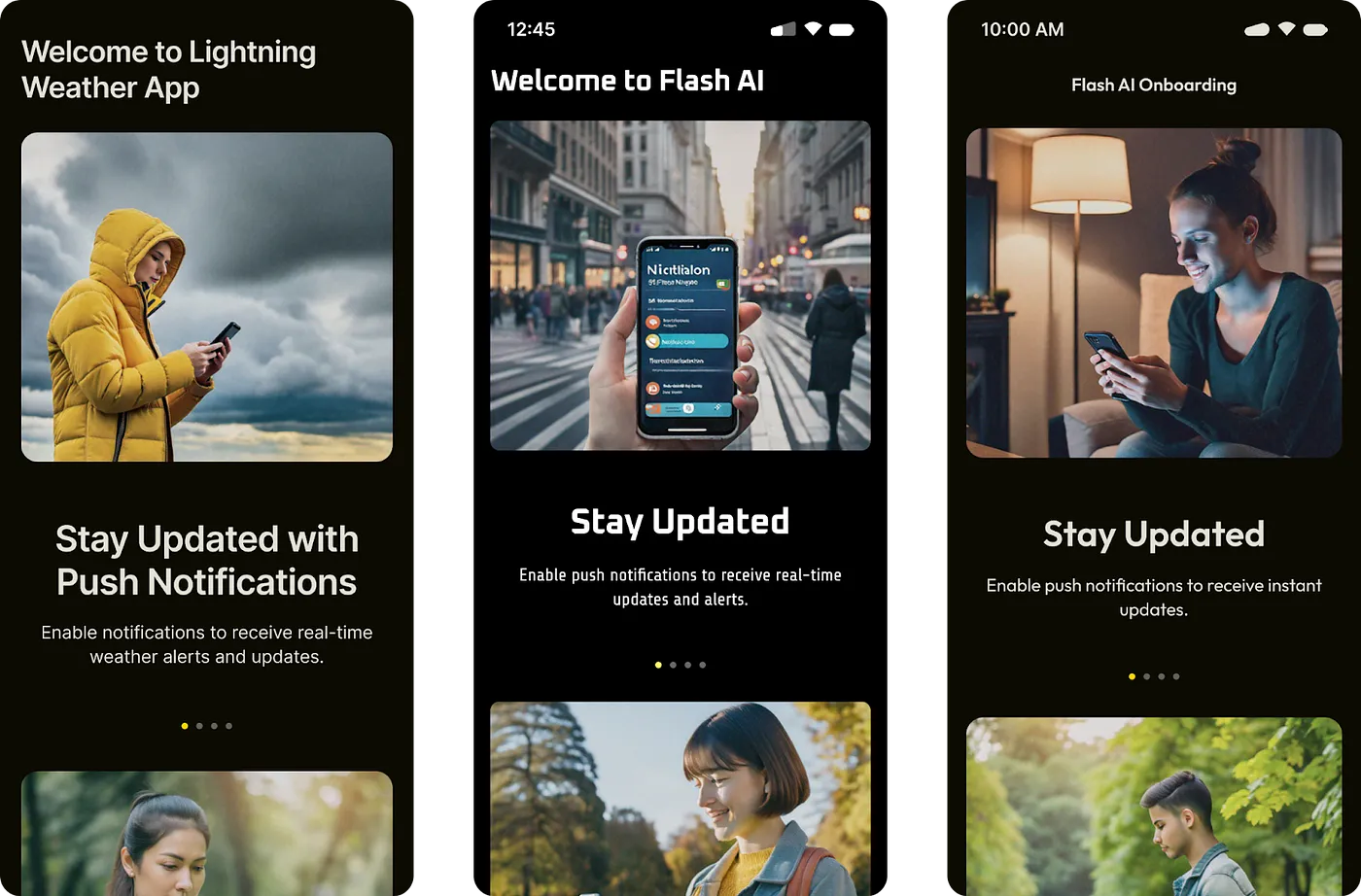
We found that First Draft produced significantly better results with simpler prompts. We wanted to like the onboarding screens it provided, but they weren’t quite the right fit. It felt more like a fun toy to play with than a reliable tool for design. Here are the onboarding screens we ended up designing ourselves with competitive research as our main source of inspiration.
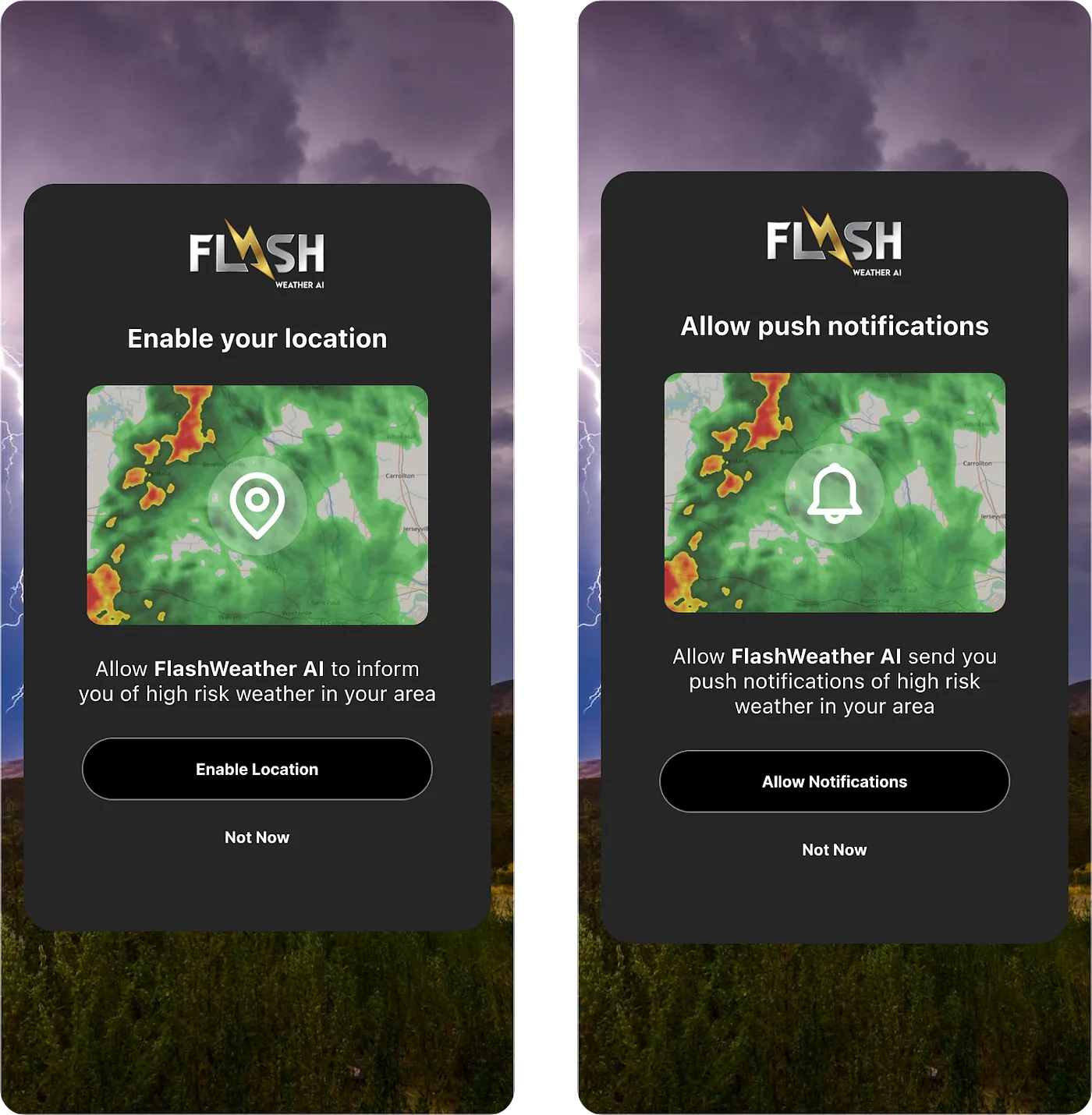
Finding the Sweet Spot
But we didn’t let that stop our efforts to try and get First Draft to work for us. We had quite a few more features to consider, and we wanted to learn how to get better at using this new AI update.
To simplify the effort more, we found we got even better results by just focusing on text prompts for specific features, rather than trying everything at once:
10-day weather forecast
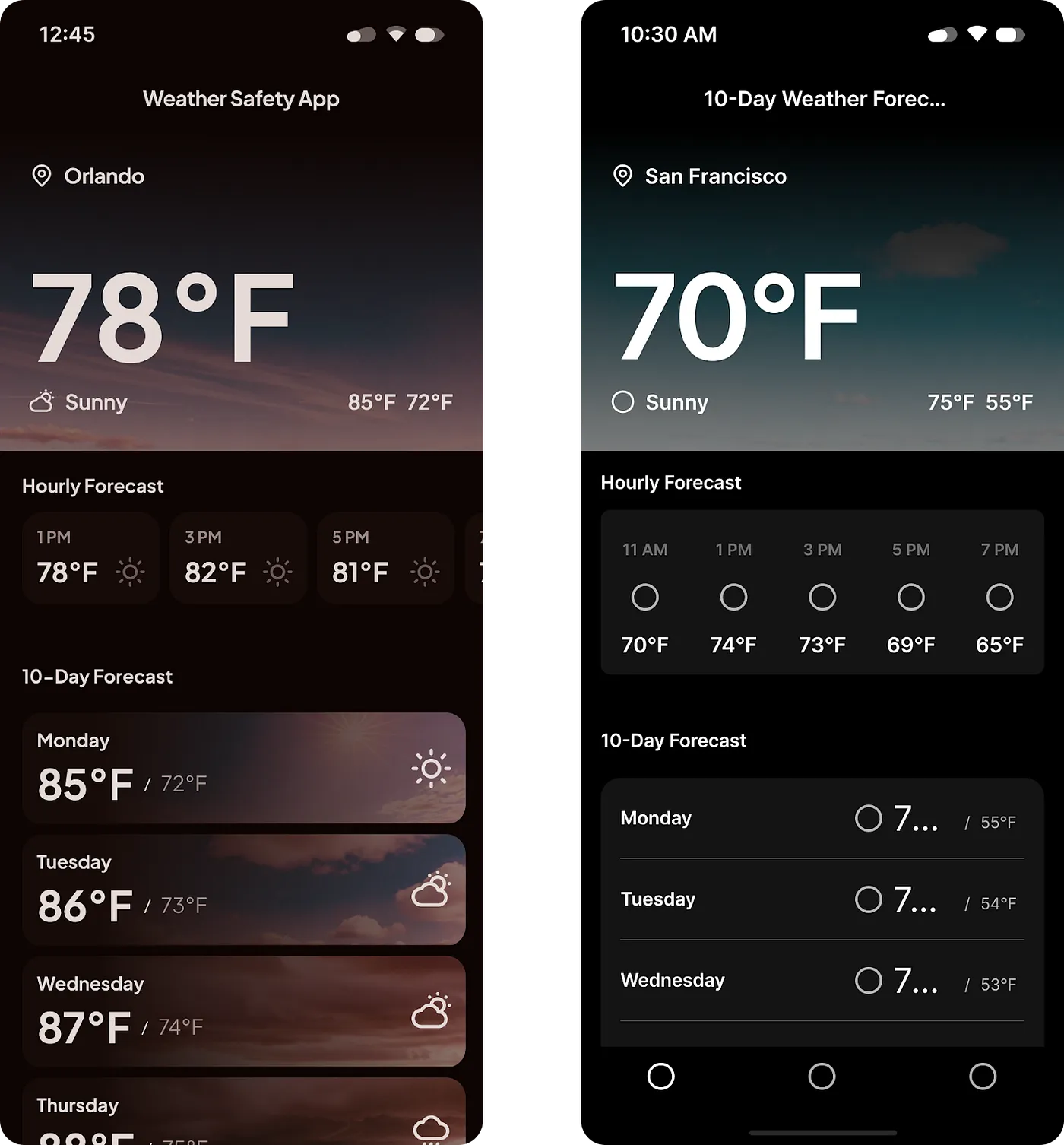
Now we were getting somewhere. From these results, we were able to start pulling pre-built, reusable components. This weather card in particular:
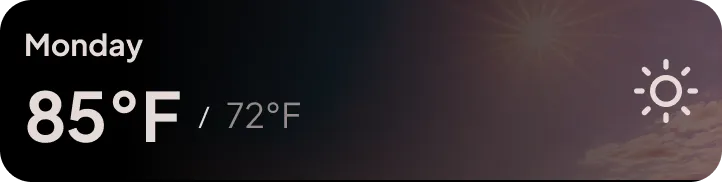
This is what the component looks like in the layers panel:
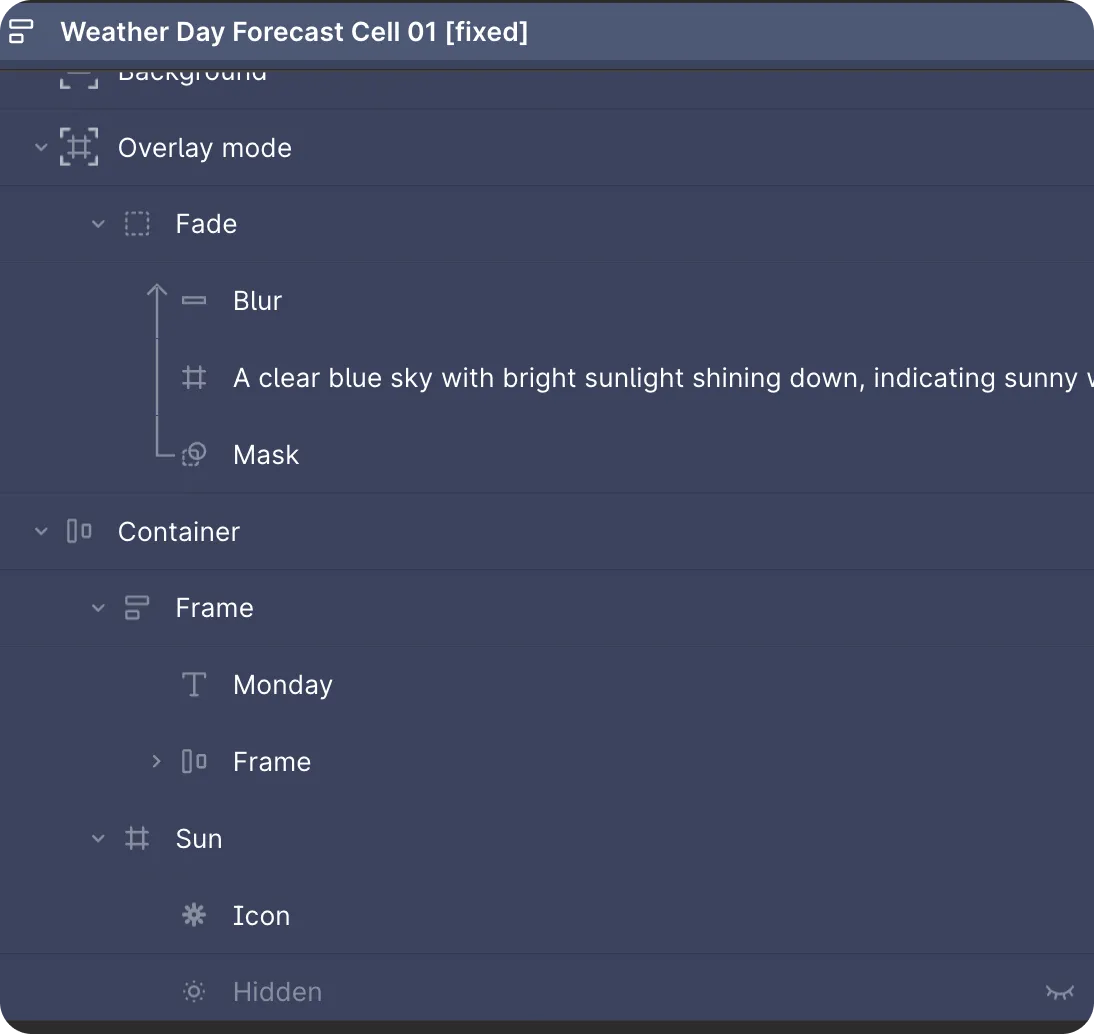
And surprisingly, it was mostly responsive.
We did make some modifications to the component based on the features the client wanted to highlight for their use cases.
We were also able to change the image in the background with a text prompt. That made it easy to modify for different weather conditions, and we didn’t even have to open up a plugin.
Our Takeaway
Overall, the AI features in Figma show great potential. However, like any new tool, it may take time to learn how to effectively leverage it.
Our advice at Atomic Robot is to experiment with AI, but use it to complement your existing skills, not replace them. Practice with these new AI tools to enhance your skillset and learn what works best in your workflows.